Reconnect GoodWe Wi-Fi with SEMS Portal
Reconnect supported GoodWe communications modules after a router or Wi-Fi change.
Before you start
Only WiFi Box, WiFi KIT and WiFi/LAN KIT using the documented SEMS Portal route. KIT-20 and SEMS+ require matching guidance.
Follow these steps
- 1
Prepare your phone
Switch mobile data off temporarily and Wi-Fi on. Stay close to the inverter.
- 2
Join the inverter network
Select Solar-WiFi followed by the matching serial-number suffix. The documented default password is 12345678; ask for help if it has changed. A no-internet message is expected on this local connection.
- 3
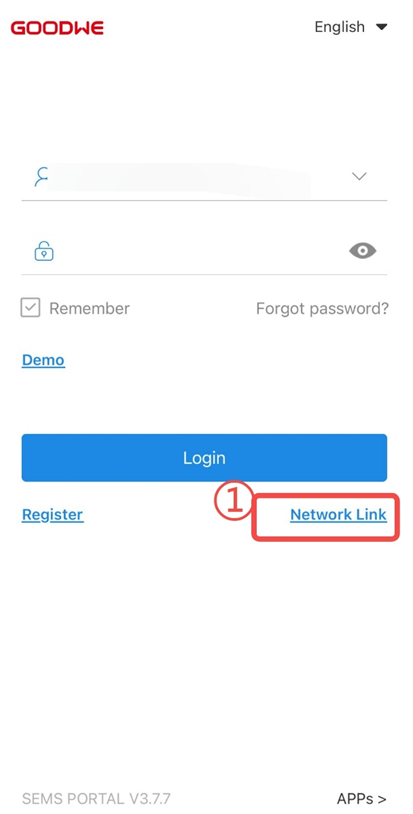
Open Network Link
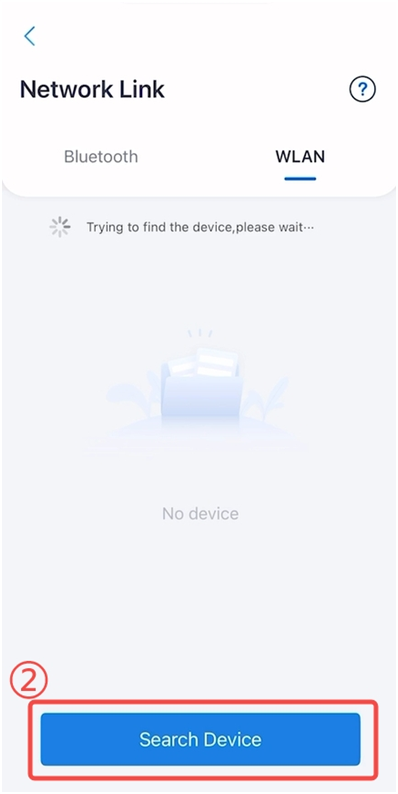
From the SEMS Portal login screen, choose Network Link, then Search Device under WLAN and select your inverter.
- 4
Choose your home network
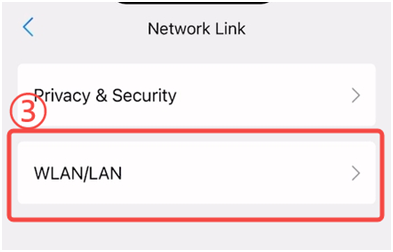
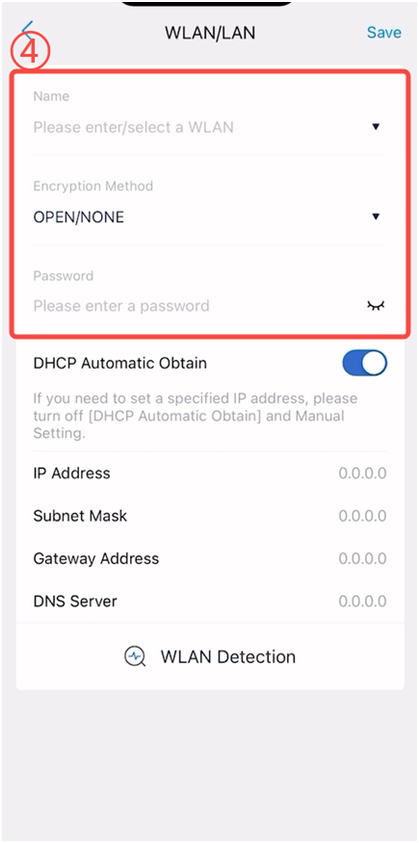
Open WLAN/LAN and enter your home Wi-Fi details. The manufacturer specifies DHCP enabled. Ask for help if the screen or network settings differ.
- 5
Check monitoring
Return your phone to its usual internet connection and check your plant. If still offline, send the module model and error screenshot to Ackwire.
Official sources & version information
GoodWe Help Centre: SEMS Portal Wi-Fi, G1 modules ↗Checked 12 November 2026. Match the guide to your model and app.